How tasks run
Learn what a task is, how to make one, pick its wallets, and start, pause, stop, edit or run it again.
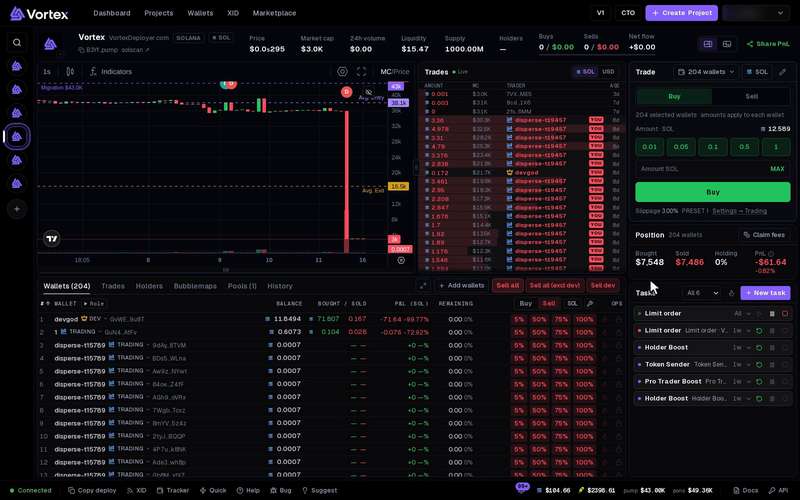
A task is a job your wallets do on one token, such as buying it, trading it or guarding it. You set it up once, start it, and follow every trade in its log.
Tasks have no test mode, and the app has no dry run. A started task sends real transactions from your wallets, and a trade that lands cannot be undone. Some tasks offer a Preview that checks the plan and sends nothing (see below). See Real funds & confirms.
Where your tasks are#
Each task belongs to one token. Open the token in the terminal. Its Tasks panel lists the token's tasks.
- The menu at the top shows All tasks or only the Active ones.
- New task opens the form to make one.
- Each line shows a status dot, the task type, its name and its wallet count (for example "6w").
- Click a task's name to open its card.
Make a task in the terminal#
- In the Tasks panel, press New task. The form opens with Buy picked.
- Under Task type, pick the job. Find a task searches the list. Types are grouped into Trade, Automate, Distribute and Launch.
- Fill in the settings. Settings you rarely change sit under Advanced.
- Pick the wallets (see below).
- Type a Task name (optional) so you can find it later.
- Press Create task. To start at once, tick Start immediately first. The button then reads Create & start.
The form only offers wallets on the token's chain. To reuse settings, pick a saved task preset in Load preset…, or press Save as preset to keep the current ones.
Snipe is not in this list. You add it while you launch.
Add tasks to a launch#
The launch wizard has a Tasks step, so tasks can start the moment your token goes live.
- On the Wallets step, add the wallets that will trade. The dev wallet does not count as one.
- On the Tasks step, pick a task type. Once you have one, Add task adds more.
- Set each task up the same way as in the form above.
- Keep Auto-start at launch on to start the task as soon as the token is live. Turn it off and the task waits for you to start it.
The Tasks step page has the details.
Pick wallets#
The wallet list shows how many you picked, for example "Wallets (6 selected)".
- Tick wallets one by one, or press All to pick every wallet shown. Clear removes them all.
- Under Select by role, tick a wallet role, such as Bundle, to pick all its wallets.
- Full screen opens a bigger picker for long lists. It adds search and quick picks: All, None, Invert, With balance and Select first N.
- A wallet marked "Also in …" is already used by another task. Both tasks then spend the same SOL.
Some task types ask for an amount beside each wallet:
- Type an amount on a wallet's row, or press Max to use all it can spend. Max keeps back enough for the network fee and the platform fee.
- To give every picked wallet the same amount, type it in Amount per wallet (SOL) and press Set all (the button shows the wallet count).
- Max all sets each picked wallet to its own spendable balance.
In Buy, Snipe and Bundle, the wallets are numbered. Wallet 1 buys first. Drag a wallet, or use its arrows, to change the order.
The dev wallet stays out unless you pick it#
The dev wallet is the wallet that created your token. Trading tasks leave it out, so a task never buys or sells from it by surprise. Quick picks such as All skip it too.
To trade with it, tick it yourself, or turn on the switch the form shows: Buy with the dev wallet, Dev wallet trades or Sell from the dev wallet. A task that uses the dev wallet says "incl. dev" on its card.
Start, pause and stop#
| Button | What it does |
|---|---|
| Start | Starts the task. |
| Pause | Halts the task. Nothing is sold. |
| Resume | Goes on from where it paused, in the same attempt. |
| Stop | Ends the task. You confirm with the check mark. Nothing is sold or undone. |
| Run again | Starts a finished task over. |
In the Tasks panel these are small play, pause and stop icons. On the open card they carry words.
A task shows one of these statuses:
- IDLE — created, not started yet.
- RUNNING — working now.
- PAUSED — halted until you press Resume.
- COMPLETED — it finished its job.
- STOPPED — you stopped it.
- FAILED — it hit a problem. The card shows the last error.
- TIMEOUT — it ran past its time limit.
A task also fails after too many errors in a row. Stop after repeated errors under Advanced sets how many.
Run again#
When a task has finished, Start turns into Run again. Run again is a new attempt. It starts from zero at the first wallet, with the same settings, as if the task were new.
- From the second run on, the card shows an "Attempt 2" chip (then 3, 4 and so on).
- The log groups trades under "Attempt N" headings, newest first.
- Results adds up all attempts.
A finished task keeps its settings as a record, so you cannot change them. To run it with new settings, press Duplicate. It makes a copy marked "(copy)" that waits for you to start it.
Edit a task#
Press the pencil icon (Edit) on the card.
- Not started or paused — change the name, the wallets and the settings.
- Running — saving applies the new settings at once, in the same attempt. Wallets that already traded in this attempt do not trade again.
- Finished — only the name can change.
To remove a task, stop it, then press Delete task and Confirm delete. A running or paused task cannot be deleted.
The task card and its log#
The card shows the status, the wallets and the task number. Its sections are:
- Executions — every transaction: When, Wallet, Side, SOL, Sig (the transaction's ID) and Status. A failed row gives the reason. Load older shows more.
- Results — how each wallet did: Landed, Failed, Skipped or No action, with reasons. Replay timeline lists the task's events in order.
- Preview — only on Buy, Snipe, Migrate & Buy, Token Sender and Wallet warm-up. It checks what the task would do right now and sends nothing. A buy task shows which wallets "will buy" or "skip", the total cost, and whether the trade "would land". Token Sender and Wallet warm-up show a short summary of the plan instead. "Would fail to start." means the task cannot start as set up. Recompute checks again.
Create the task without Start immediately. Open Preview, and press Start only when it looks right.
What tasks cost#
Every buy and sell a task makes pays the network fee and the platform fee. Some tasks also pay a Jito tip or a price of their own. Each task page says which. See Platform fees & tiers.