KOL tracker
Keep a list of wallets to watch, and see their trades marked on the chart and in the Trades panel.
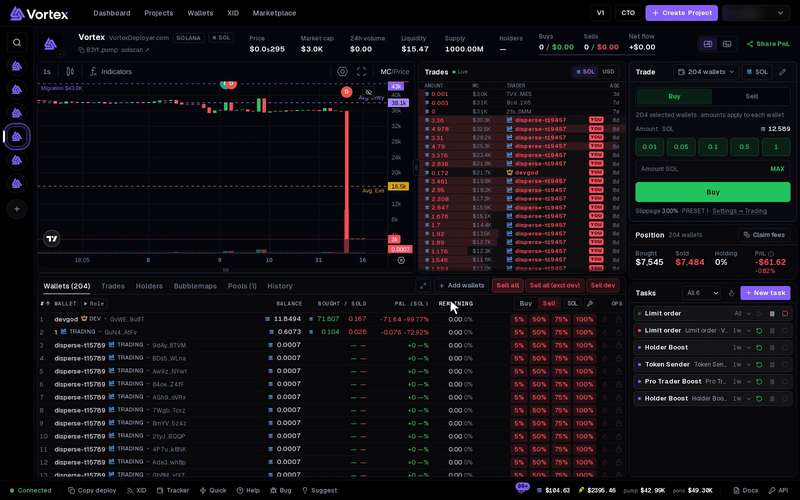
The Tracker holds your list of wallets to watch, such as well-known traders. A wallet on this list is often called a KOL. When one of them trades the token you have open, the terminal shows it with the wallet's emoji and name. The tracker only watches. It never trades or spends anything.
Open the tracker#
- On a computer — press the wallet icon in the bar at the bottom of the screen. On wide screens it reads Tracker.
- On a phone — open the ☰ menu and press KOL tracker.
The window is titled Tracker. The top of the left side shows how many wallets you track. Your one list works in every terminal.
Your starting list#
Your list starts with a set of well-known trader wallets. They are yours to rename or remove.
Track a wallet#
- On a narrow screen, press Track wallet above the list. On a wide screen, the form is always on the left.
- Paste the address into Wallet address.
- Type an Emoji. This is the mark you see on the chart.
- Type a Name, up to 64 characters.
- Press Add. You see "Wallet tracked" when it is saved.
Only Solana addresses can be added for now. The box says "Solana or EVM address", but an EVM address (one that starts with 0x) is refused.
- Emoji — optional. If you leave it empty, the Trades panel shows 💎 and the chart shows B or S.
- Name — optional. If you leave it empty, the list shows Unnamed and the terminal shows a short address.
Change or remove a wallet#
- Change — paste an address that is already on the list. The button reads Update. Fill in a new emoji or name and press Update. Empty fields stay as they were.
- Find — type in the Name or address box above the list.
- Copy — press the address on a row.
- Remove — press the bin on a row, then Untrack. The ✕ next to it keeps the wallet.
If you remove every wallet, the starting list comes back the next time the tracker loads. Keep at least one wallet on the list to stop this.
Where tracked trades show#
- Trades panel — the trader column shows the emoji and name instead of a short address. Click it to open the wallet on the explorer.
- Chart — a mark with the wallet's emoji sits on the candle where it traded. It is green for a buy and red for a sell. Hover it to read who traded and how much, such as "Cupsey bought 1.500 SOL".
Add the dev wallets of tokens you follow. A sell from a dev wallet is often the first sign that a token is winding down.
Troubleshooting#
- "Already tracked — type a new name or emoji to update it." — that address is on your list. Fill in a new name or emoji, or clear the address.
- "Wallet address required" — paste an address before you press Add.