The terminal
One screen for each token, with its chart, live trades, your wallets and the Trade panel.
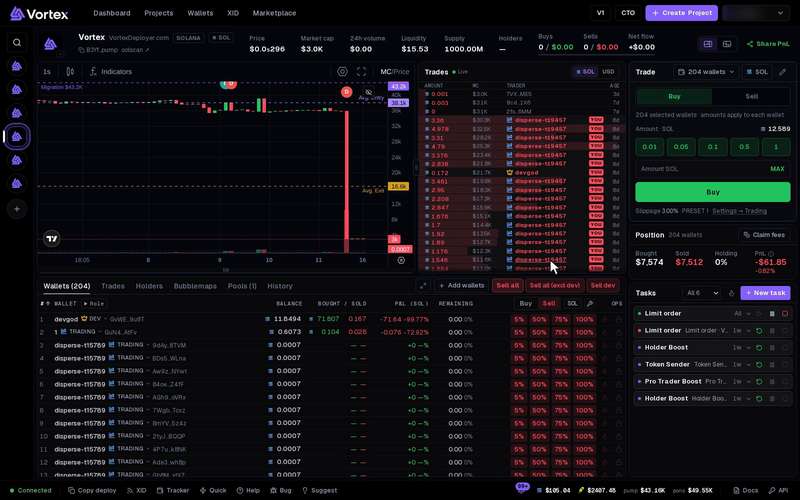
The terminal is where you watch and trade one token. It shows the chart, live trades, your wallets, your position and the tasks running on that token.
The terminal has no practice mode. Every buy and sell button spends real SOL or ETH right away, pays the platform fee and cannot be undone. See Real funds & confirms.
Open the terminal#
- After a launch, the terminal opens by itself on the new token.
- On Projects, press Open terminal on a project.
- On a computer, click a token icon in the bar on the left.
- In the user menu, choose Swap. It opens your newest launch.
To open any other token, click the token image at the top left. Search your tokens, or paste a contract address.
The header#
The top row shows the token's name and chain. Buttons copy the contract address or open the explorer. Under it you see Price, Market cap, 24h volume, Liquidity and Supply. Buys, Sells and Net flow cover the last 24 hours.
At the top right sit the layout switch and Share PnL. See P&L share cards.
Pick a layout#
On a computer, two buttons at the top right switch the layout:
- Terminal — the default. The chart with the Trades panel beside it and your wallet tabs below. A right column holds the Trade panel, your position and your tasks.
- Side by side — the chart over the Trades panel on the left. On the right: your position, the wallet tabs, then the Trade panel beside your tasks.
The app remembers your layout, and the chart height for each layout.
Drag the line between the chart and the Trades panel to make one wider. Double-click it to reset. Drag the chart's bottom edge to change its height. Double-click that edge to fold the chart away.
The chart#
The chart shows the token's price over time. Lines mark your wallets' Avg. Entry and Avg. Exit. A Migration line marks the market cap where the token will migrate. Tasks with price limits draw their limits too. Dev buys and sells show as DB and DS marks. Wallets you follow in the KOL tracker show as emoji marks.
The Trades panel#
The Trades panel lists every buy (green) and sell (red) as it happens. Each row shows the amount, the market cap, the trader and the age. Click the age to open the transaction. Your own wallets carry a YOU tag.
A dot shows Live while trades come in, or Connecting while the panel reconnects. The switch in the panel's head shows amounts in the coin (SOL, ETH or the pair token) or in USD. On a narrow screen, the trades move into the Trades tab.
The right column#
- Trade — buy or sell with many wallets at once. See Trade panel.
- Position — your wallets' Bought, Sold, Holding and PnL on this token. A button in its head shows the token's fees, such as Claim fees or Creator fees.
- Tasks — the tasks on this token. Choose Active or All. Press New task to add one. The flame button warms up wallets. See Tasks.
The tabs#
- Wallets — your attached wallets, 100 to a page. Each row shows the balance, bought and sold, P&L and tokens left, with its own buy and sell buttons. Add wallets attaches more wallets to your own launches. Sell all, Sell all (excl dev) and Sell dev sit here too. See Sell all.
- Trades — the full list of trades on this token.
- Holders — who holds the token: the dev, your wallets, the top 10, other wallets and the pool.
- Bubblemaps — a map of holders that seem linked, made by Bubblemaps.
- Pools — the markets where the token trades.
- History — trades by your attached wallets on this token.
In a wallet's row, Burn destroys that wallet's tokens for good. Lock (Solana only) locks them until a date you pick. You cannot end a lock early. Both ask before they send. See Burn & lock.
On a phone#
The parts stack in one column: chart, Trade panel, position, wallet tabs, tasks, then trades. When the Trade panel scrolls out of view, a Trade button brings it back. The Tasks button in the wallet tabs jumps to your tasks.