Trade panel
Buy or sell a token with many of your wallets at once, by amount or by percent.
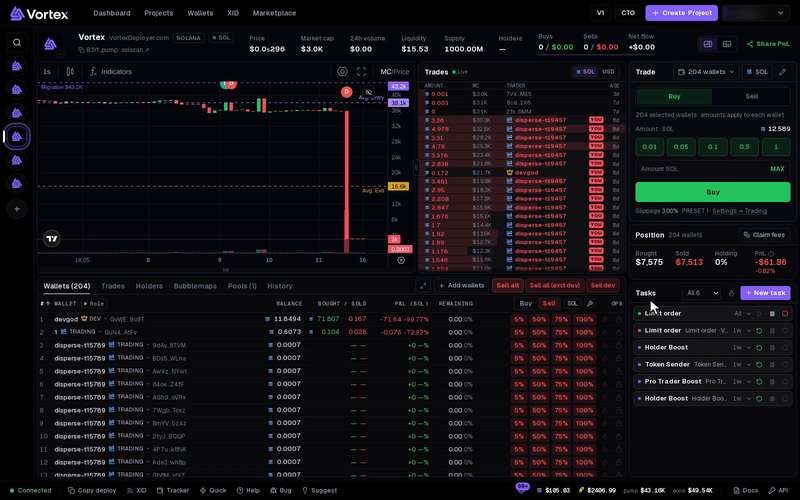
The Trade panel buys or sells the token with every wallet you tick, in one press. It sits at the top of the right column in the terminal.
A chip or button sends real trades at once, one per wallet. Buys spend SOL (ETH on Robinhood). Every trade pays the platform fee and a network fee. A trade cannot be undone. See Real funds & confirms.
Before you start#
Attach wallets with Add wallets in the Wallets tab, and fund them with SOL or ETH.
Make a trade#
- Press the wallet button in the panel's head (Select wallets or N wallets). Tick the wallets that should trade.
- Press the mode button to choose coin amounts (it shows SOL, ETH or the pair token) or %.
- Choose Buy or Sell.
- Press a chip to trade that amount at once. Or type an amount and press Buy or Sell (or Enter).
- Read the message that sums up the result, such as "Bought on 3/5 wallets · 2 insufficient balance".
Amounts are per wallet. With 5 wallets ticked, the 0.1 chip buys 0.5 SOL in total.
Buttons never lock. A small number on one counts its trades still running.
Choose wallets#
When the terminal opens, the panel ticks the wallets that hold the token, or all attached wallets if none do. The dev wallet is always at the top.
- The menu at the top of the list ticks a set at once, such as Select all, With SOL balance, Holding tokens or a wallet role. Deselect all clears the ticks.
- Search — press the magnifier and type in Search wallets….
- Pick — choose Random, Low tokens or High tokens, type how many, then press Pick.
Buy#
- Chips — your buy amounts, per wallet. The defaults are 0.01, 0.05, 0.1, 0.5 and 1 SOL. In % mode, each chip is a share of each wallet's spendable balance.
- MAX — each wallet spends all it can. It keeps back 0.01 SOL (0.0005 ETH on Robinhood) plus the platform fee.
MAX and % buys only work when the token trades against SOL or ETH. On a token paired with another token, use a coin amount.
Sell#
In % mode, a switch above the chips picks the base.
- % of bag — each wallet sells that share of its own bag. The defaults are 25, 50, 75 and 100.
- % of supply — each wallet sells that share of the token's total supply, but never more than it holds. The chips are 0.1, 0.25, 0.5 and 1.
In coin mode the box reads Worth. Each wallet sells tokens worth that much SOL or ETH.
A wallet with no tokens is skipped, not counted as failed. To sell everything at once, see Sell all.
Presets and slippage#
Your chips come from a preset: PRESET 1, PRESET 2 or PRESET 3. Presets are saved to your account.
- The pencil in the panel's head opens Edit Quick Actions. Change the chips, use Add (up to 6) or Reset, then press Save presets.
- The line under the panel shows the slippage and the active preset. Its link opens Settings → Trading, where you switch presets and change slippage. The default slippage is 3%.
Randomize#
Randomize in Settings → Trading is off by default. Turn it on and set how far each buy may go down and up (0–90%). Each wallet then buys a slightly different amount. Sells never change.
In this panel, Randomize also changes % and MAX buys. A MAX buy can then ask for more than a wallet has. Set the up band to 0 before you use MAX.
Buttons on each wallet#
In the Wallets tab, each row has buttons that trade for that one wallet.
- The Buy / Sell switch in the column head picks which buttons show. It starts on Sell.
- Buy buttons are your buy amounts (shares of the balance in % mode) and MAX. Sell buttons are % of that wallet's bag.
- The wrench in the column head edits these buttons.
- Here, MAX and % amounts stay exact, even with Randomize on.
Want a question before trading with a dev-role wallet? Turn on Confirm dev trades in Settings → Trading → Confirmations. It is off by default.
Troubleshooting#
- "No buy route for this token yet" — the app can't find a market to buy through yet. Wait a few seconds and press again.
- "insufficient balance" — those wallets lack SOL or ETH for the amount plus fees. Fund them or pick a smaller amount.