Settings
Set your quick-trade amounts, confirmations, launch defaults and how the app looks.
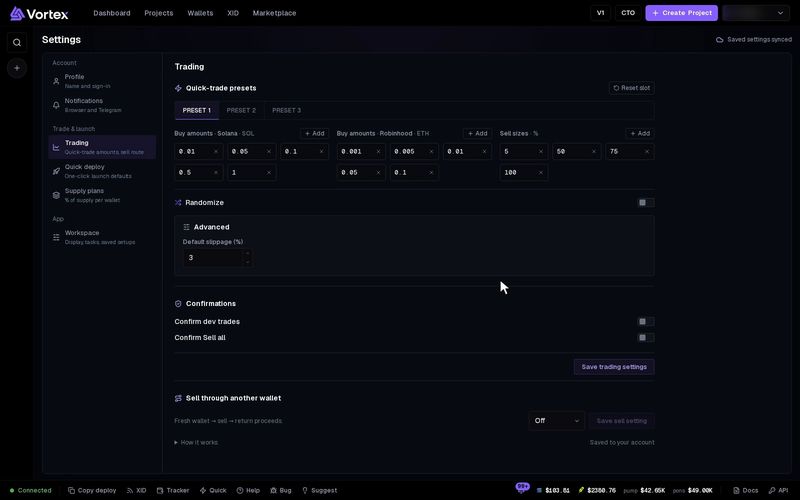
Settings holds your defaults: the amounts on your trade buttons, the values Quick deploy starts with, your supply plans and a few display choices. Your settings are saved to your account, so they follow you to every browser you sign in on.
Open Settings#
- Click your name at the top right.
- Click Account settings.
- Pick a section on the left. On a phone, the sections are a row of tabs at the top.
| Section | What it holds |
|---|---|
| Profile | Your name and how you sign in |
| Notifications | Browser and Telegram delivery |
| Trading | Quick-trade amounts, confirmations, sell route |
| Quick deploy | One-click launch defaults |
| Supply plans | % of supply per wallet |
| Workspace | Display, tasks, saved setups |
Notifications and Workspace save by themselves. The other sections have a save button at the bottom. You can switch sections without losing unsaved edits.
Profile is explained on My profile, and Notifications on Notifications.
Trading#
Quick-trade presets#
These are the amounts on the one-click buy and sell buttons in the trading terminal. You can keep three sets: PRESET 1, PRESET 2 and PRESET 3.
- Pick a preset at the top.
- Edit the lists. Click Add to add an amount, or the small x to remove one. Each list holds up to 6 amounts.
- Click Save trading settings. The preset you are looking at becomes the active one.
- Buy amounts · Solana — in SOL. Default 0.01, 0.05, 0.1, 0.5 and 1.
- Buy amounts · Robinhood — in ETH. Default 0.001, 0.005, 0.01, 0.05 and 0.1.
- Sell sizes — in % of what a wallet holds. Default 25, 50, 75 and 100.
- Randomize — off by default. When on, each quick trade changes the amount a little, within the band you set (0 to 90 % each way). On a wallet row, MAX and 100 % sells stay exact. A MAX buy in the Trade panel can change too.
- Advanced settings → Default slippage (%) — how far the price may move before a trade is refused. Default 3 %. Allowed: 0.01 to 100 %, in steps of 0.01 %. The app warns you above 10 %. See slippage.
- Reset slot — puts this preset back to the defaults.
Saving presets moves no money. But on a wallet row and in the Trade panel, clicking an amount sends a real trade at once. In the order ticket, clicking an amount only fills it in.
Confirmations#
Both are off by default. Click Save trading settings after you change them.
- Confirm dev trades — asks you first before a quick trade that includes a wallet with the dev role. See dev wallet.
- Confirm Sell all — asks you first before Sell all, Sell all (excl dev) or Sell dev sells 100 % from your wallets.
Sell through another wallet#
With this on, a sale goes through a fresh, temporary wallet. Your tokens move there, that wallet sells, and the money comes back to you. Click Save sell setting after you change it.
- Off — sell from your own wallets (the default).
- All sells — use a temporary wallet for every sale.
- Custom — pick which Manual sells and which Task types use one.
On Solana, each sale takes two transactions. One sends 0.01 SOL and your tokens to the temporary wallet. The other sells and sends all the SOL back. You pay network fees on both. On Robinhood, a sale may also need a token approval.
Quick deploy#
These are the values Quick deploy starts with: the launchpad, symbol, image, dev wallet, dev buy and launch tasks. You can keep three sets, PRESET 1 to PRESET 3. Click Save PRESET N to save one. That preset becomes the one Quick deploy uses, marked with a dot. Saving launches nothing.
How to fill in each field is on Quick deploy. If a saved wallet was deleted, it is removed from the preset and a warning asks you to save again.
Supply plans#
A supply plan saves how much of a token's supply each wallet buys, in %. How to make and use one is on Supply plans.
Workspace#
- Display density — Compact (the default) or Comfortable. Sets the space between controls.
- One task per wallet — off by default. When on, a wallet in a running or paused task cannot be picked for another task.
- Saved setups — saves your trading and launch defaults under one name, up to 20 setups. Type a name and click Save setup. Load puts a setup back into the forms. Loading never trades or launches.
- Account sync — shows whether your settings reached your account. Sync now checks again. If this browser and your account differ, pick Use account version or Keep this version.
- More options → Reload forms from saved settings — throws away unsaved edits and loads your saved defaults.
Troubleshooting#
"Review account sync" shows at the top — Open Workspace and pick which version of each setting to keep.
"Add at least one amount to save this preset." — Every list needs at least one amount. Zero and repeated amounts are not allowed.