Operation progress
Follow a token conversion or a project closeout, and stop or continue the rest of it.
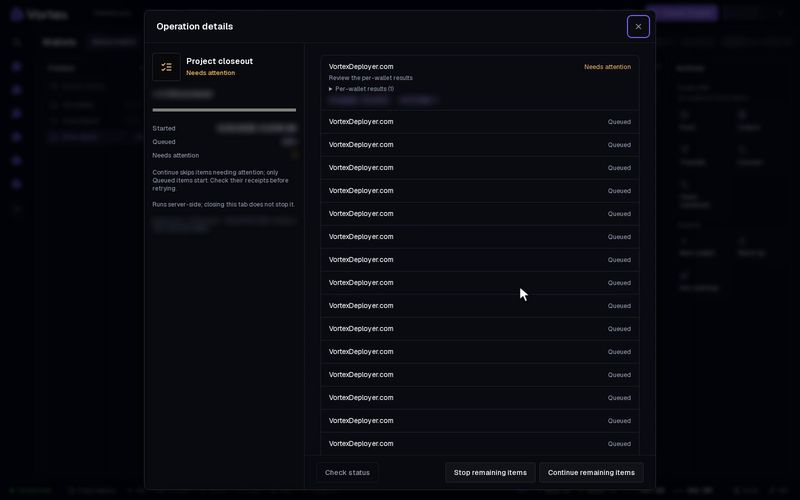
Some jobs work through many wallets one by one. A token conversion (Convert) and a project closeout (Close out) are two of them. The Operation details window shows how far such a job got, and what happened to each wallet.
Open the window#
- When you start a real conversion in Convert, the window opens by itself, over the page you are on.
- When an operation finishes, stops or needs you, the bell in the bottom bar gets a notification. Click it to open the window.
- The window lives in the page address. Reload the page and it opens again.
A closeout also shows its progress inside its own Close out projects window. See Close out.
The job runs on our servers. Closing the window or the browser tab does not stop it.
Read the window#
The left side shows the job as a whole:
- The title: Token conversion or Project closeout. · Simulation after it means a dry run that sent nothing. The app no longer starts these. They come from older runs or from the API.
- "N of M processed" and a progress bar.
- How many items are Queued and how many Needs attention.
- Operation reference — a code for this job. Give it to support if you need help.
Each item has one of these statuses:
| Status | What it means |
|---|---|
| Queued | Waiting for its turn |
| In progress | Being worked on now |
| Awaiting confirmation | Sent; the result is still being checked |
| Completed | Done |
| Needs attention | Something went wrong; read the detail |
| Stopped | Stopped before it started |
Under an item you may see:
- Open wallet — opens that wallet.
- Per-wallet results (N) — the result for each wallet in the item.
- Follow sweep task #N — a closeout started a task to collect funds. This opens it.
- A transaction link — opens the transaction on a block explorer.
Stop or continue#
- Check status — loads the latest saved state.
- Stop remaining items — queued items will not start. Items already sent may still finish.
- Continue remaining items — shows when some items need attention and others still wait. It skips the items that need attention and starts only the queued ones.
An item that needs attention may still have gone through on the chain. Open its transaction link first. Starting the same job again spends real SOL or ETH a second time. See Real funds & confirms.
Keep a window running in the background#
Windows that move money for many wallets have a Minimize button (the dash at the top right). This includes Fund wallets, Collect funds, Warm up wallets, Dev warmup, Claim cashback, Convert and Closeout.
- Click Minimize. The window hides, and a chip with its name appears in the bottom bar.
- Keep working. A thin bar on the chip shows progress when there is one.
- Click the chip to bring the window back.
Convert and Closeout stay open while you move between pages. Keep the browser tab open while Convert is still checking wallets. The other windows belong to the page that opened them. If you leave that page, the chip goes away, but the job it started keeps running.
Troubleshooting#
"Updates interrupted. Showing the last saved state." — Your connection dropped. Click Check status. A lost connection does not mean the job failed.
An item says Needs attention — Read its detail and open its transaction link before you do anything else.