Supply plans
Save how much of a token's supply each wallet should buy, then use that plan in buy forms.
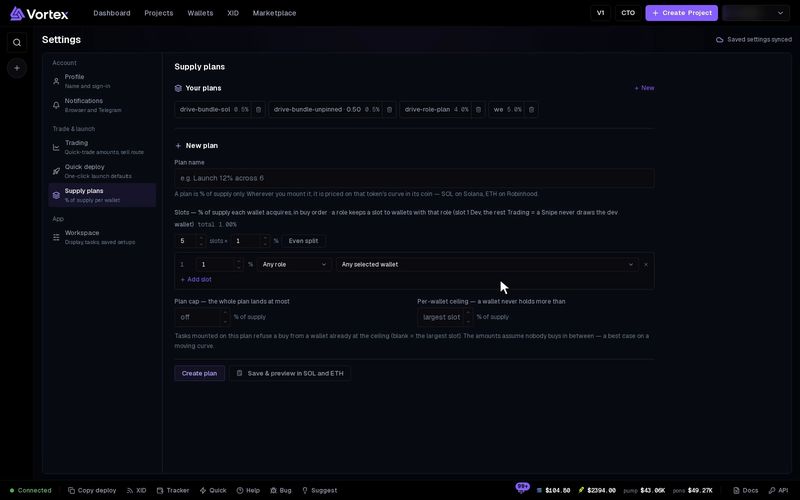
A supply plan says how much of a token's supply each wallet buys, in %. You make it once. Then any form with a Supply plan picker can turn it into amounts for that token.
Open Supply plans#
- Click your name at the top right.
- Click Account settings.
- Pick Supply plans on the left.
You can also click Manage plans next to any Supply plan picker.
Make a plan#
- Under New plan, type a Plan name, up to 60 characters.
- Add the slots. Each slot is one wallet's share of the supply, in %. Slot 1 buys first, then slot 2, and so on.
- To fill many slots at once, set the number of slots and the % for each, then click Even split. This replaces the slots you had.
- Click Add slot to add one more. Click the small x on a row to remove it.
- Optional: pick a wallet role for a slot. Only a wallet with that role can fill it. Any role lets any wallet fill it.
- Optional: pick a wallet for a slot. That wallet always fills it, whatever its role. Any selected wallet leaves the slot to the wallets you pick in the form.
- Optional: set the limits below.
- Click Create plan. Or click Save & preview in SOL and ETH to save it and see the amounts.
The total of all slots shows above the list. It can be at most 100 %.
Give slot 1 the role Dev and the other slots Trading (no role). Then a Snipe never picks your dev wallet for the other slots.
Limits#
- Plan cap — the most the whole plan may buy, in % of supply. Empty means off. The slots together cannot be more than the cap.
- Per-wallet ceiling — the most one wallet may hold, in % of supply. Empty means the size of your largest slot. No slot can be bigger than it. A task that uses the plan skips a buy from a wallet that already holds this much.
Preview the amounts#
Save & preview in SOL and ETH shows two tables: Solana in SOL and Robinhood in ETH. Each prices the plan on a brand-new bonding curve, where nobody has bought yet. The amounts assume nobody else buys in between, so they are a best case.
Use a plan in a form#
The Supply plan picker shows in new and edited buy tasks, on buy cards in the launch wizard, and in Fund wallets.
- Select the wallets in the form first. The plan fills its slots with them, in order. If you select none, it uses all the wallets the form offers.
- Pick a plan in Supply plan. Each entry shows its name, its number of slots and its total %.
- Click Mount. The app prices each slot for this token and fills the form.
- Check the table under the picker. Then save or start the form as usual.
The table shows each slot's Wallet, Target, what it Lands and its cost. It can also show the Balance, what is Short and what each wallet Holds now. If you change the wallets, click Re-mount.
What the form takes from the plan:
- Buy tasks and launch buy cards — the amount for each wallet and the per-wallet ceiling.
- Some other tasks — the wallets and the per-wallet ceiling.
- Fund wallets — each wallet that is short of its planned buy gets exactly what it lacks.
Mount only fills in the form. Nothing buys or sends until you start the task, launch, or send the funds.
Edit or delete a plan#
Your saved plans show under Your plans, with their total %.
- Edit — click a plan. The form above changes to Edit plan. Make your changes and click Save plan.
- Delete — click the bin next to a plan. It is deleted at once, with no question first.
Saving under a new name makes a new plan, and the old one stays. Saving a new plan with the name of one you have replaces that plan.
Troubleshooting#
"Slots add up to … — more than the whole supply" — Lower some slots so the total is 100 % or less.
"A slot targets more than the per-wallet ceiling" — Raise the Per-wallet ceiling, or lower that slot.
"… slots without a wallet — select more wallets to fill the plan" — The form has fewer wallets than the plan has slots. Select more wallets, then click Re-mount.
An error that starts with "supply plan:" when you click Mount — The plan cannot be priced for this token. For example, StonkFun curves are not priced yet. Enter the amounts by hand.