Quick deploy
Launch a token from one small window, using settings you saved ahead of time.
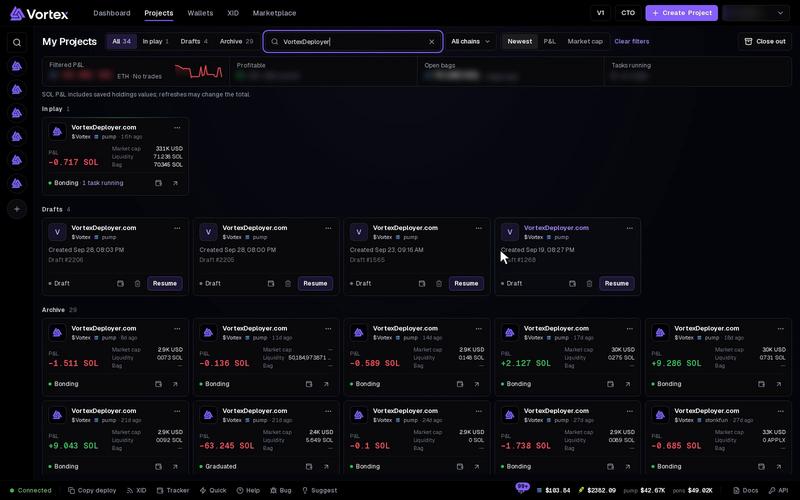
Quick deploy launches a token from one small window, on any page. You save your usual setup once as a preset. After that, a launch needs only a name and a click.
Before you start#
- Have a wallet with SOL (or ETH on Robinhood Chain). See Fund wallets.
- Set up at least one preset, as shown below.
Deploy sends a real launch right away. It spends real SOL or ETH, and no confirm window opens first. There is no test mode here. See Real funds & confirms.
Set up your presets#
You can keep three presets: PRESET 1, PRESET 2 and PRESET 3. Each one holds a full launch setup.
- Open Settings and pick Quick deploy. Or click Settings at the top of the Quick deploy window.
- Pick the tab of the preset you want to change.
- Fill in the groups:
- Launchpad — where the token launches, its pair token and its mode. See Launch settings.
- Token — the Default symbol and Default image, used when you leave them empty.
- Dev wallet and dev buy — the Default dev wallet and the Dev buy. Pick Choose at launch to choose the wallet each time.
- Launch tasks — click Add launch task for tasks that start when the token exists. Up to 20.
- Click Save PRESET 1 (or 2, or 3). You see "PRESET 1 saved — Quick deploy uses it".
Under Advanced you can change the dev buy's slippage (default 5%) and priority fee (default 0.00004 SOL per launch transaction; a bigger launch pays a little more). Most people leave these alone.
Launch a token#
- Click Quick at the bottom of the app. On a phone, open the menu and pick Quick deploy.
- The Quick Deploy window opens. Pick PRESET 1, PRESET 2 or PRESET 3 at the top. The one you pick is also used next time.
- Type a Name. Leave Symbol empty to use the preset's symbol, or one made from the name.
- Optional: choose a Token image (PNG, JPEG, GIF or WebP, up to 5 MB), or click ASCII art. With no image, the preset's image is used. If the preset has none, an image is drawn from the symbol.
- Check the Creator wallet, the Dev buy and Launches. They come from the preset. You can change them for this launch.
- Check the Launch tasks box. It lists each task from the preset and its wallets. Untick it to launch without them.
- Click Deploy.
If the preset names no creator wallet, or a task has no wallets, the window changes to Choose for this launch. Pick the missing wallets, then click Deploy. Tick Save to PRESET 1 (or 2, or 3) to keep these picks for next time. Back returns to the form.
The terminal opens as soon as the launch is sent. You see "Launch sent — opening" with your symbol, then Token minted! or a "Mint failed" message. See After launch.
Other buttons#
- Vamp — copy another token's name, symbol and image. Its description and links are kept only in the full wizard. See Clone a token.
- Reuse — fill the window from one of your past launches. The launch tasks stay the ones from your preset.
- Full wizard — move to the Create Project wizard. Your name, symbol, image, launchpad, creator wallet, dev buy and ticked launch tasks come with you. Pick another preset under Quick deploy preset on the first step to swap them.
- Custom token address — launch on an address you made yourself. See Token details.
Troubleshooting#
- Deploy is greyed out — something is still missing. The first reason shows next to the button, such as "Add a token name". Fix it, and the next one shows, until Deploy works.
- "Fund it (Wallets → Funds) before launching" — the creator wallet cannot pay for the dev buy. Add SOL to it, or lower the dev buy.
- Your saved dev wallet is gone — it was deleted or is on another chain. Pick a new one and save the preset again.
- "Pick the stock the StonkFun curve is quoted in" — the preset uses StonkFun but names no stock. Pick one under Launchpad in the window. To keep it, pick it in Settings → Quick deploy too.
- "… does not offer Community mode — pick Standard or Reward, or another stock" — the preset uses StonkFun Community with a stock that does not offer it. Pick another Mode or stock under Launchpad. See StonkFun options.