After launch
What you see after you press Create or Deploy, how to read the result, and what to do next.
When you press Create in the wizard or Deploy in Quick deploy, the launch is sent. The window closes and the terminal opens on your new token.
The first seconds#
- The terminal shows Preparing and your symbol, for example Preparing CAT, until the token's address is known.
- Then it switches to your token. Prices, trades and holders fill in as the launch and the first buys land.
- A message tells you the result. See the list below.
With more than one launch, the terminal opens after the first one. The rest launch in the background. See Launch settings.
Read the result#
- Token minted! — the token exists. Your tasks are starting.
- Minted — but N task(s) failed to start — the token exists, but some tasks did not start. Open the Tasks panel to see which ones and why.
- Mint failed: and a reason — the token was not made.
- Launch confirmation pending. Do not launch again while this transaction is being checked. — wait. The app is still checking whether the launch landed.
If the launch could not start at all, the terminal shows Launch could not start with the reason, and a View projects button. If you reloaded the page before the result came in, it shows Check launch status. Open Projects to see what happened before you try again.
A launch that looks stuck may still land. Check Projects first. A second Create makes a second token and spends the money again. See Real funds & confirms.
Creator-fee or OTC Desks messages can arrive after the token itself launched. They do not mean the launch failed.
Your project on Projects#
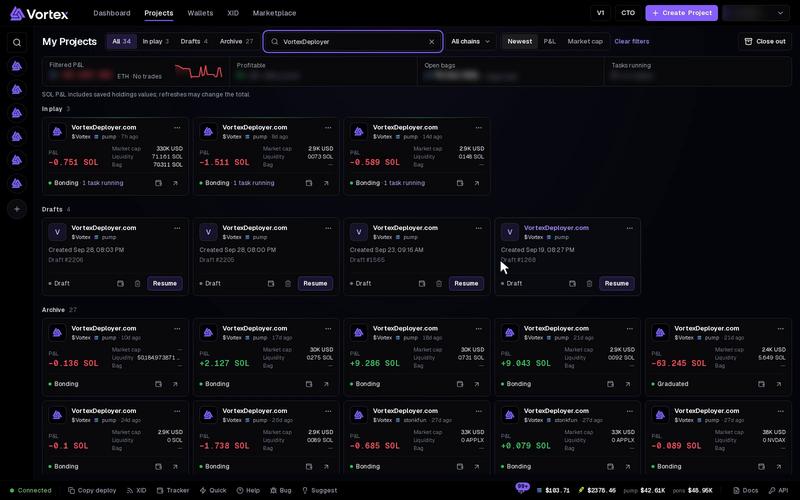
Every launch gets a tile on Projects. Its status line shows where the token is:
- Launching — the launch was sent and is being checked.
- Bonding — the token trades on its bonding curve.
- Graduated — the curve filled and the token moved to its own pool. See graduation.
- No live pool — no market prices the token right now.
When tasks run, the line adds "· N tasks running". The tile also shows P&L, Market cap, Liquidity and Bag, the value of what your wallets still hold.
The tile's menu has Open terminal, Project wallets and Copy mint address.
In the terminal#
- Tasks — every task of this token, one per line. Switch the list between Active and All. Open a task to pause or stop it.
- New task — add a task on this token, such as Volume, a sell Ladder or Anti-Sniper. See How tasks run.
- The tabs below the chart: Wallets, Trades, Holders, Bubblemaps, Pools and History.
- Share PnL — makes a picture of your result to share. See P&L share cards.
- The fee button in the Position panel — what your token earns from trading. See below.
Every task you start from the terminal buys and sells with real SOL or ETH, and pays the platform fee. See Platform fees & tiers.
Claim creator fees#
Trades of your token can pay creator fees. The fee button in the Position panel shows them. Its label depends on the token:
- Claim fees — your own Solana launch. It opens the claim window.
- Fee details — another Solana token. Only its creator can claim, so the window has nothing to claim for you.
- Holder Rewards — pump.fun pays the fees to holders by itself. There is nothing to claim.
- Creator fees — Robinhood Chain. The fees go to the creator wallet by themselves. The window shows the totals.
To claim on Solana:
- Open your token from Projects and click Claim fees.
- Check the list. Each line is one place that holds fees for you, with the amount waiting.
- Click Claim all. One transaction claims every line, signed by the creator wallet.
The fees land in the creator wallet. Fees paid in wrapped SOL arrive as plain SOL.
- Only the creator wallet of your own launch can claim. It must be a wallet you have in the app.
- A line needs at least 0.001 SOL waiting. Smaller amounts stay until they grow.
- A line you claimed less than a minute ago shows "Claimed under a minute ago". Claim all skips it.
- The creator wallet pays the network fee. It may also pay rent for a token account the fees land in. If it holds too little, nothing is sent and the message says how much to add.
When you are done#
- Collect funds to bring SOL or ETH back to one wallet.
- Or use Close out on Projects. It sells what is left, closes empty accounts and collects the SOL, for several projects at once.
Troubleshooting#
- A task did not start — open it in the Tasks panel. Its card says why.
- The tile says No live pool — the app finds no live market for the token. Open the Pools tab in the terminal to check.
- A batch stopped early — the wallets could not pay for the next launch. The tokens made before it stay live.