Create a project
Launch a new token step by step with the Create Project wizard.
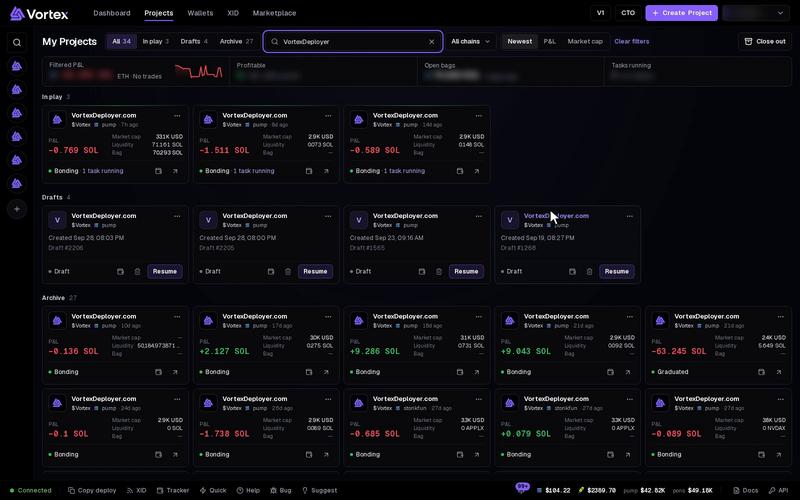
A project is one token you launch, plus the wallets and tasks that trade it. The Create Project wizard walks you through it in four steps. For a fast launch from saved settings, use Quick deploy instead.
Before you start#
- Have at least one wallet with SOL (or ETH on Robinhood Chain). See Fund wallets.
- Have your token image, name and symbol ready.
The wizard has no test mode. Create and Schedule send real transactions and spend real SOL or ETH. No confirm window opens after you press them. Read Real funds & confirms first.
Open the wizard#
- Click Create Project at the top of the app. On a narrow screen the button reads Create.
- Or open Projects and click Create Project.
The Create Project window opens on step 1. You can jump between steps at any time.
The four steps#
- Metadata — the token's image, name, symbol, links and launchpad. See Token details and Launch settings.
- Wallets — pick the creator wallet, set the dev buy and add trading wallets. See Wallets step.
- Tasks — optional. Add tasks that trade the token the moment it launches. See Tasks step.
- Review & Deploy — check everything, set Launch at and Launches, then launch.
Your draft is saved for you#
The wizard saves your work as a draft while you type. The top of the window shows Unsaved draft, Saving…, Saved or Not saved.
- Save & close, Cancel, the × and the Escape key all close the window and keep the draft.
- A click outside the window does not close it, so you cannot lose your work by accident.
- To go on later, open Projects, pick the Drafts tab and click Resume.
The Wallets step unlocks once the draft exists. Until then it says "Preparing the project…" and offers Retry.
The left column#
On a wide screen, a column on the left stays with you through all four steps:
- Your token's image and name, and its reserved address (CA). Click the address to copy it.
- Reuse — fill the whole wizard from one of your past launches, tasks included.
- Vamp — copy another token's look. See Clone a token.
- A short summary of each step.
- Per launch — the Dev buy and Task buys one launch spends. Fees and rent are extra. With more than one launch it shows "× N launches".
Launch#
- Go to Review & Deploy.
- If the page lists "Before you can launch, add:", fix each item first. Each one ends in Fix. Click it to jump to the step that needs it.
- Check the Token, Wallets and Launch tasks blocks. Click Edit on a block to change it.
- Leave Launch at empty to launch now, or pick a time to schedule it.
- Click Create. When Launch at is set, the button reads Schedule.
After Create, the terminal opens right away and says Preparing with your symbol. See After launch for what comes next.
If you see "Launch confirmation pending", do not press Create again. Your first launch may still land. Check Projects first.
Troubleshooting#
- Create is greyed out — something is still missing. Hold the pointer over the button to see "Missing:" and the list, or read "Before you can launch, add:" on Review & Deploy. Create works again once the list is empty.
- "Pick a creator wallet" — go to the Wallets step and choose a dev wallet.
- "Add a token image" — upload an image on the Metadata step.
- The Wallets step stays locked — the draft could not be made. Click Retry.