Export a private key
Show and save the private key of one wallet or many, so you can use the wallet in another app.
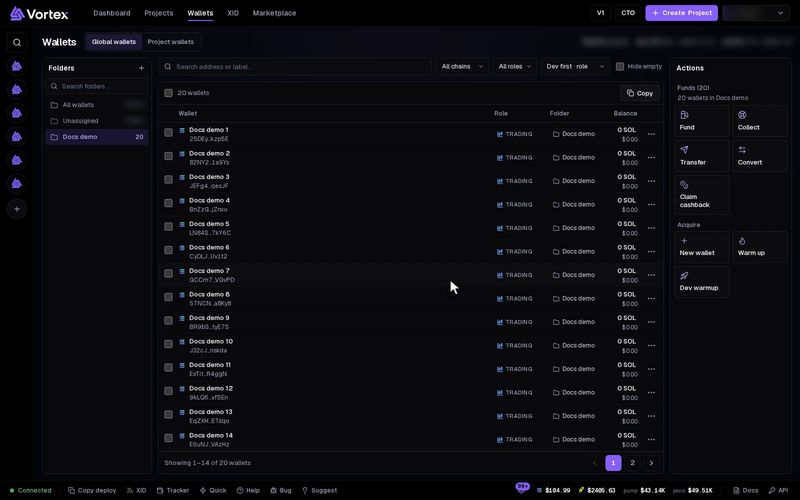
A private key is the secret that controls a wallet. Export it to open the wallet in Phantom, MetaMask or another app, or to keep a backup. The app never shows a key unless you export it.
The app shows this warning every time:
Anyone with this private key has full control of this wallet and everything in it. Never share it, never paste it into a website, and store it somewhere only you can reach.
A key cannot be changed. If someone else gets it, the only fix is to move the funds to a new wallet before they do.
Export one key#
- Open Wallets. Press ⋯ at the end of the wallet's row, then Export key. Export private key opens.
- Type your Account password. Fill it in only if you set a web-login password in this app. If you sign in with Telegram only, leave it blank. A password from the old site does not count.
- Press Reveal private key.
- The key appears hidden. Press Show to see it, or press the copy button next to it.
- Paste the key where it goes, then clear your clipboard.
- Press Done — I’ve saved it.
A Solana wallet shows the same key in two forms:
- Private key (base58 — Phantom / CLI) — for Phantom and most Solana apps. See base58.
- Byte array (solana-keygen JSON) — for command-line tools.
A Robinhood wallet shows Private key (hex — MetaMask / Rabby · Robinhood).
Export many keys#
- Tick the wallets. Press Export keys in the bar above the table (or in the Actions panel on a narrow screen).
- Type your Account password, then press Reveal N private keys.
- Each wallet is listed with its key hidden. Show all shows every key. Find exported wallet searches the list.
- Copy all copies every wallet as one line each: the address, a comma, then the key.
- Press Done — I’ve saved them.
Download a wallet file#
After a reveal, Download file saves the keys in one JSON file. The file also keeps each wallet's role, label and folder. You can load it back later with Import from file under New wallet. See Create & import.
Anyone who opens the file can take every wallet in it. Keep it offline, for example on a USB stick. Do not email it or upload it to cloud storage.
Good to know#
- If you type a wrong password too many times, exports pause for a while. The window says how long.
- Every export is recorded on your account.
- Once a key has left the app, treat it as possibly seen. When you are done with the other app, move the funds back to a wallet made here.