Sign in & accounts
How to sign up and sign in with Telegram, add a browser password, and keep your account safe.
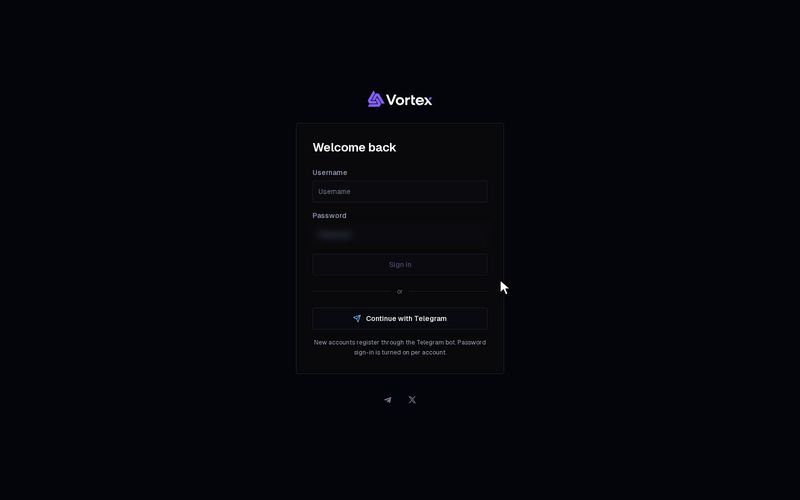
Your VortexDeployer account starts in Telegram. You sign in through the VortexDeployer Telegram bot. Later you can add a username and password for any browser.
Sign up or sign in with Telegram#
- Open the app. On the Welcome back card, press Continue with Telegram.
- Telegram opens the bot (@DeployOnVortexBot). Start it.
- The bot replies with a Launch App button. Tap it.
- The app opens and you are signed in.
The Launch App link works once and runs out after 10 minutes. If it fails, press Continue with Telegram again to get a new one.
New accounts are made this way. There is no sign-up form in the browser.
If you open the app inside Telegram as a mini app, it signs you in by itself.
Add a username and password#
Browser sign-in is off for new accounts. It unlocks when you reach the Silver fee tier. See Platform fees & tiers. Until then, Profile says "Password sign-in is off for this account; the operator enables it." If you need it sooner, ask Support.
Once it is unlocked:
- Open your account menu and pick Account settings.
- Pick Profile. Find the group Set up browser sign-in.
- Enter a Username. Use 3–24 characters: lowercase letters, digits or
_. - Enter a New password of 8–200 characters. Type it again in Confirm password.
- Press Enable browser sign-in.
Now you can sign in from any browser. On the Welcome back card, fill in Username and Password, then press Sign in.
Change your username or password#
- Open Account settings → Profile. The group is now called Username and password.
- Enter your Current password.
- Enter the new details.
- Press Save sign-in details.
Saving new sign-in details ends every other session. It also cancels all your API keys. Any bot or script that uses them stops working. Make new keys on the API page afterwards.
Sign out#
Sign out is at the bottom of your account menu. It ends your session on every device, not only this one. Your API keys keep working.
Your password guards your keys#
When you export a wallet's private key, the app asks for your Account password if you have set one. See Export a private key.
Troubleshooting#
- "Wrong username or password." — Check both. Usernames are lowercase. If you forgot the password, sign in with Telegram and ask Support. You need the current password to set a new one.
- "Could not sign in. Check your connection and try again." — The app could not reach the server. Check your internet and try again.
- Service unreachable — The app cannot reach its server right now. Press Retry, or Sign out instead.
- "Your session has ended. Sign in again to continue." — You signed out on another device, or your password changed. Sign in again.
- "Username must be lowercase." — Use only small letters, digits and
_. Spaces and dashes are not allowed. - "Passwords do not match." — Type the same password in New password and Confirm password.
- "Enter your current password to change your credentials." — Your account already has a password. Type it in Current password.