Find your way around
Where everything is in the app — the top bar, your account menu, the project list, the bottom bar and settings.
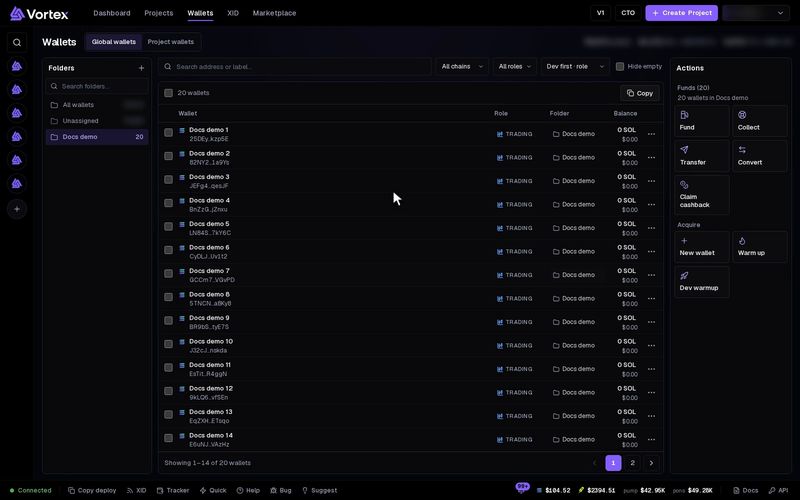
This page shows where things are in the app. Use it when you cannot find a screen or a button.
The top bar#
The top bar is always on screen. From left to right:
- Dashboard — your overview: balance, total P&L and how many tokens you launched.
- Projects — every token you set up, launched or not.
- Wallets — your wallets, with the Fund, Collect and other tools.
- XID — a live feed of posts from X accounts.
- Marketplace — buy ready-made wallets.
On the right side you find:
- V1 — opens the older version of VortexDeployer.
- CTO — take over an existing token. See CTO an existing token. It shows on wide screens only.
- Create Project — starts the launch wizard.
- Your account menu.
Your account menu#
Click your picture or initial at the top right. The menu holds Portfolio, Swap, Copy deploy and Support. Below them are Referrals, Account settings, Docs and API. Sign out is at the bottom. Copy deploy launches a copy of each new token another creator makes.
Your projects on the left#
On wide screens, a thin column on the left lists your 20 newest projects.
- A project with a dashed ring is a draft. Click it to go back to the wizard.
- A launched project opens its token's terminal.
- Browse projects (the search icon) finds any project by name, symbol or address.
- + starts a new project.
The bottom bar#
The bottom bar has three parts.
- Left: the connection state, then shortcuts. Copy deploy, XID (opens the feed in a side panel), Tracker (the KOL tracker), Quick (Quick deploy), Help, Bug and Suggest.
- Middle: a chip for each work window you made smaller. Click a chip to open it again.
- Right: the bell for notifications, SOL and ETH prices, the pump.fun and pons graduation market caps, Docs and API.
The connection state reads Connected when all is well. Connecting or Checking means the app is reaching the server. Offline or API down means live updates have stopped. Wait, or reload the page.
Bug sends a report with the page you are on and its technical details attached. Use it when something looks wrong.
Where things moved#
Some screens from older versions now live somewhere else.
- Tasks have no page of their own. Open a token's terminal and use its Tasks panel. See How tasks run.
- Long jobs such as funding or collecting open in a window that shows their progress. See Operation progress.
- Notifications open from the bell in the bottom bar. Their settings are in Account settings → Notifications. See Notifications.
On a phone#
Press Open menu at the top. It holds the top-bar links, Create Project and CTO. It also has Copy monitor, Quick deploy, KOL tracker, Report a bug and Suggest a feature.
Settings#
Open Account settings from your account menu. The list on the left has three groups.
- Account — Profile (name and sign-in) and Notifications.
- Trade & launch — Trading, Quick deploy and Supply plans.
- App — Workspace. Here Display density sets the space between controls: Compact or Comfortable.
See Settings for every option.
Search the docs#
In the docs, use Search docs at the top of the side menu. You can also press / or Ctrl+K (⌘K on a Mac).