Deploy from XID
Start a token launch from a post in the XID feed, with its name, ticker, link and picture filled in.
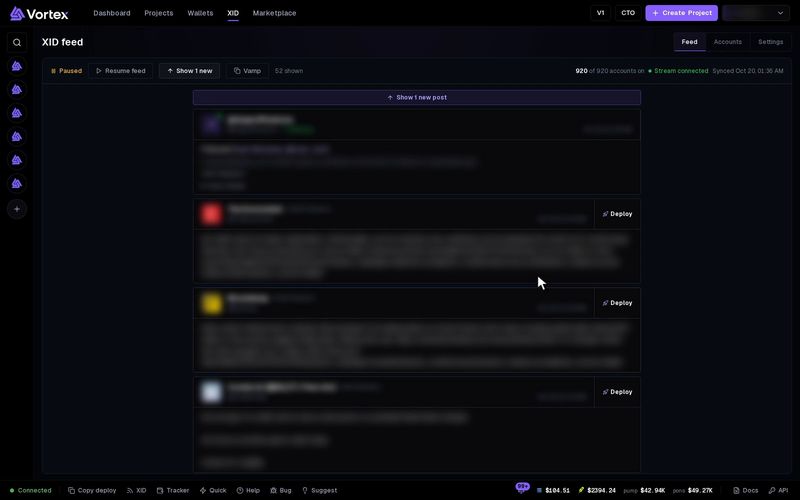
A post in the XID feed can become your next token. The deploy shortcuts open the launch wizard with the post's details filled in. Your Quick deploy preset brings your creator wallet, dev buy and launch tasks. Nothing launches until you press Create in the wizard.
There is no practice mode. When you press Create, the launch is real. It spends SOL (ETH on Robinhood) on fees and on every buy you set up. A launch cannot be undone. See Real funds & confirms.
Before you start#
Set up your presets in Settings → Quick deploy: the creator wallet, the dev buy and the launch tasks with their wallets. See Set up your presets. The wizard uses the preset you used last.
Then open the XID page, choose Settings, and set your Deploy defaults. They save as soon as you change them.
- Double-click deploy — double-click a word in a post to deploy with it. Off by default.
- Selection deploy — select some text to get a deploy button. Off by default.
- Platform — the launchpad the wizard starts on. You can still change it in the wizard. The default is Pump.fun. You can also pick Raydium LaunchLab, Bonk, Bonkers, StonkFun (LaunchLab · stock quote), Bags (Meteora DBC) or pons (Robinhood).
- Launch mode — which task cards the wizard adds. The default is Dev buy only. See the list below.
- After deploy — Open the token terminal (the default) or Stay on the feed.
Deploy from a post#
- Find the post in the feed.
- Press Deploy on the right of the card.
- The wizard opens with the post's details filled in. Your preset's creator wallet, dev buy and launch tasks are set too.
- Optional: pick another preset under Quick deploy preset. It swaps the launchpad, creator wallet, dev buy and launch tasks. The name, symbol, links and image stay.
- Check every field and change what you want. Add anything the post did not give, such as a description.
- Walk through to Review and press Create.
If the preset has no creator wallet, or a task has no wallets, pick them in the wizard.
The wizard fills in:
- Name — the first 3 words of the post, without links, up to 32 characters. With no words, it uses the @handle.
- Symbol — the first word, letters and digits only, in capitals, up to 10 characters.
- X (under Links) — a link to the post.
- Token image — the post's first picture, or a video's preview picture.
Deploy from one word or from selected text#
Turn these on in Settings first.
- Double-click deploy — double-click one word in a post. The word becomes the name and the symbol. Marks like $, # and @ at its start are dropped.
- Selection deploy — select up to 32 characters in a post. A Deploy “your text” button appears. Press it to use that text for the name and symbol.
Launch modes#
Launch mode adds task cards that your preset does not have. You pick their wallets and amounts. A preset task of the same kind wins: with a Snipe task in the preset, Snipe adds nothing.
- Dev buy only — no task cards. The launch buys only with your dev buy, if you set one.
- Bundle — adds a Bundle task. On Robinhood it adds a Buy task instead.
- Snipe — adds a Snipe task.
- Bundle + Snipe — adds both. On Robinhood it adds only the Buy task.
Vamp a token#
Vamp in the feed's toolbar copies another token's look: its name, ticker, description, links and picture.
- Press Vamp.
- Paste the token's address into Contract address.
- Check what it found, then press Use this look.
The wizard opens with that look, your preset and your Deploy settings. See Clone a token.
After the launch#
With Open the token terminal, the terminal opens on your new token. With Stay on the feed, you stay on the feed.
Troubleshooting#
- "Could not fetch the tweet image — pick one manually" — the picture could not be loaded. Choose one in the wizard.
- Nothing happens on double-click — turn on Double-click deploy, and double-click a single word.
- No creator wallet or launch tasks — the preset in use has none. Pick another under Quick deploy preset, or set one up in Settings → Quick deploy.
- A preset task is missing — the wizard leaves out tasks the launchpad's chain cannot run, such as a Solana task on Robinhood.
- "Could not add the preset's wallets to the project" — the task cards are set, but their wallets did not join the project. Add them on the Wallets step.